Create a Table in the KalamDB Admin UI
Create a table in the KalamDB Admin UI with the visual table editor, where you define the namespace, table type, table name, storage options, flush policy, compression, and fields before reviewing the generated schema change.
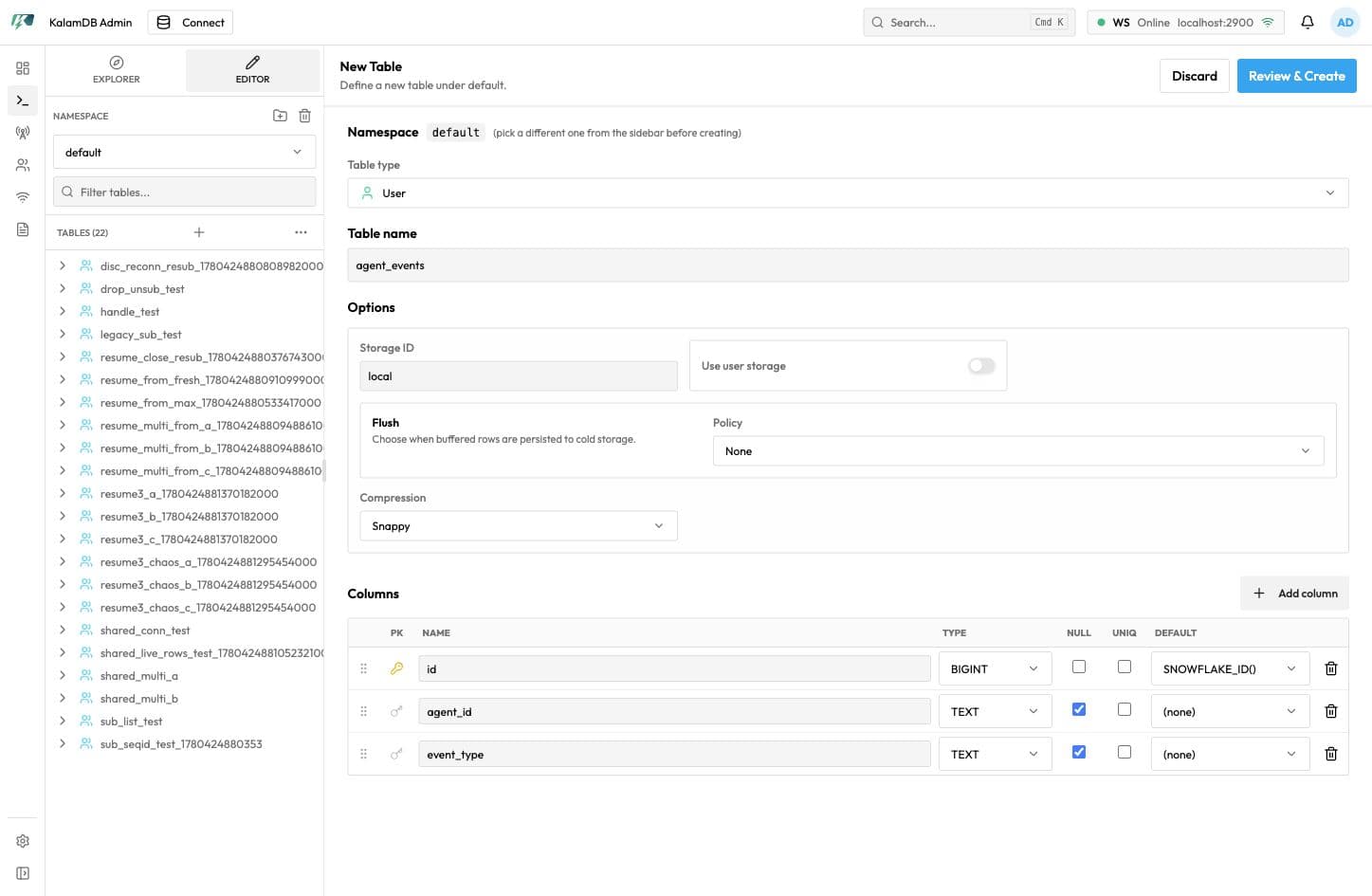
Open The Table Editor
Open SQL Studio, choose the target namespace, then select New table from the explorer toolbar.
The editor starts with:
- namespace context
- table type selector
- table name
- storage ID and optional user-storage toggle
- flush policy and compression controls
- column rows with primary key, type, nullable, unique, and default controls
DiscardandReview & Createactions
Define Fields
For a starter agent_events table:
- Set
Table nametoagent_events. - Keep the default
idprimary key unless your schema needs a different key. - Use
Add columnfor each additional field. - Set field names such as
agent_idandevent_type. - Choose each field type from the type selector.
- Adjust nullable, unique, and default values before review.
Use Review & Create to inspect the schema change, then confirm creation. The action is disabled until required fields are valid.
Verify The Table
After creation, the table appears in the namespace explorer. Open SQL Studio and run:
If you create the table in another namespace, replace default with that namespace.